Reminder:
If you are outside of the office, you must first connect to the VPN. Instructions for connecting to the VPN in Windows can be found at Use the Penn State VPN - Windows.
Connecting to the Server:
- In Windows 10: Go to Start Menu > Windows Accessories > Remote Desktop Connection.
- For the Computer name type: s6-austin.ad.psu.edu.
Image
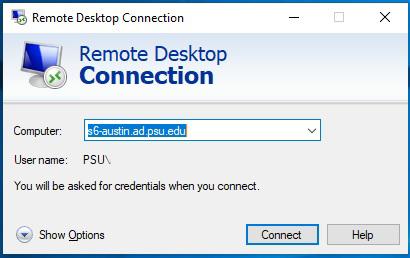
- Click connect.
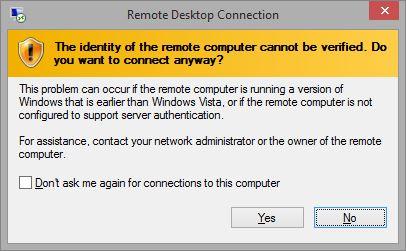
- You may receive a warning about "the identity of the remote computer". If so, check the box next to "Don't ask me again for connections to this computer" and click "Yes".
Image
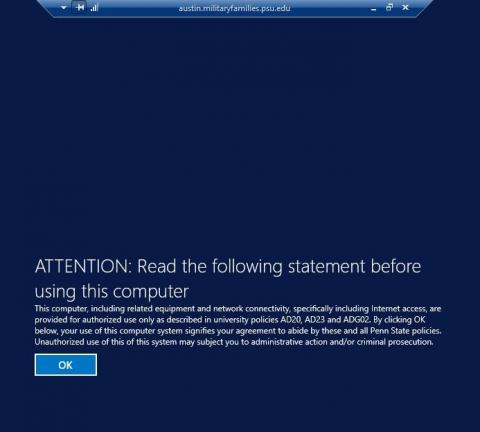
- You will now see a user agreement. Read the agreement. Click OK to accept and continue to the login screen.
Image
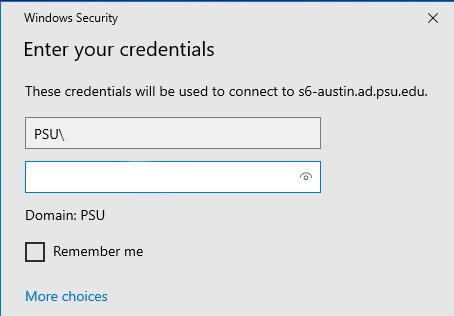
- Login with your PSU Access Account username and password. Then hit enter to continue.
Image
- IMPORTANT: When you are finished on the Server, Log Off. Do NOT select "Disconnect" or just click the X in the floating blue bar at the top of the screen. Unless you log off, your session will remain active.
Logging off:
- Click on the Windows icon to open the Start menu.
Image

- Click on the icon on the left side that looks like a person.
- Select "Sign out".
Image
