If you see a prompt asking "How do you want to open this?" when you try to make a call in PhonerLite, or if another app such as Microsoft Teams opens when you try to make a call, try these steps to resolve it.
- Open PhonerLite, click on "Options" at the top, select "URL protocol handler", and choose "sip".
Image
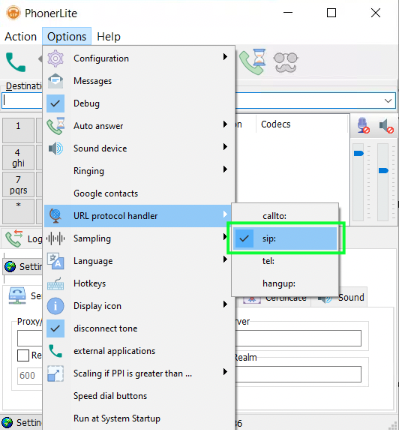
- Try to make a call again. If the issue persists, continue to the next step.
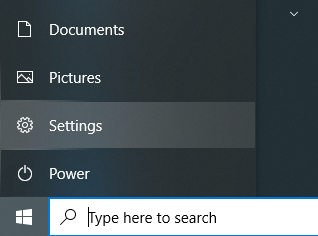
- Click on the Windows logo in the bottom left corner of the screen and click on the cog wheel to open Settings.
Image
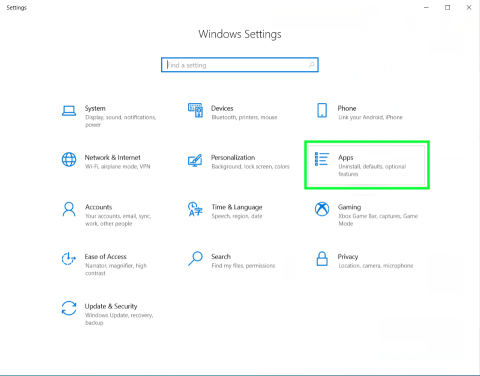
- Click on "Apps".
Image
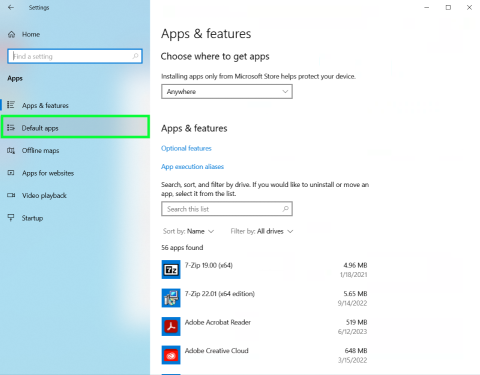
- On the left side, click on "Default apps".
Image
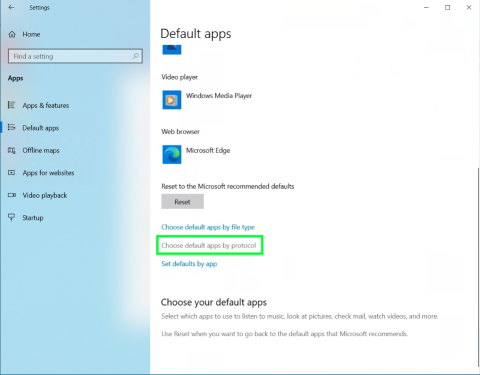
- Scroll down to the bottom and click on "Choose default apps by protocol".
Image
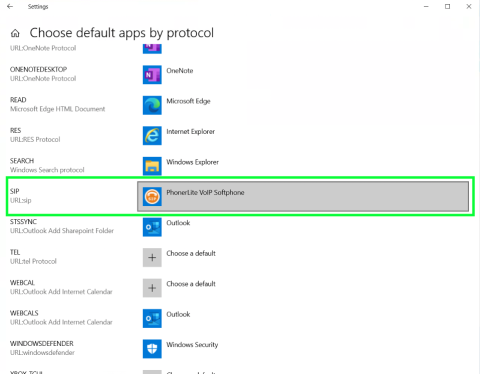
- Scroll down to "SIP" and "URL:sip".
- Click on the icon to the right of the words.
-
Select PhonerLite from the options if it is available.
Image
- Try to make a call again. If the issue persists, please restart your computer.
- Try to make a call again. If the issue persists, please email ssri-it@psu.edu to open a ticket.