OneDrive is pre-installed in Windows 10 and on SSRI's remote desktop servers.
Sign in to OneDrive
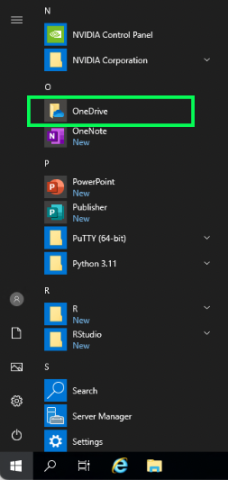
- Click on the Windows Start menu, and click on OneDrive.
Image
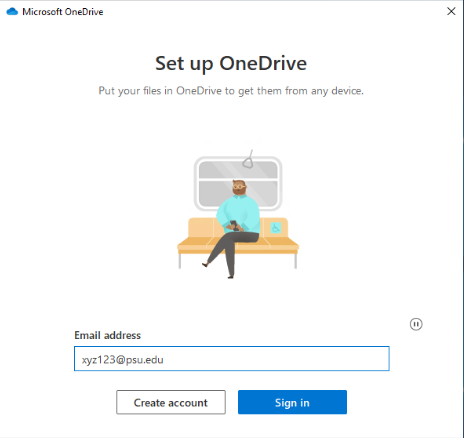
- Enter your PSU email address to sign in.
Image
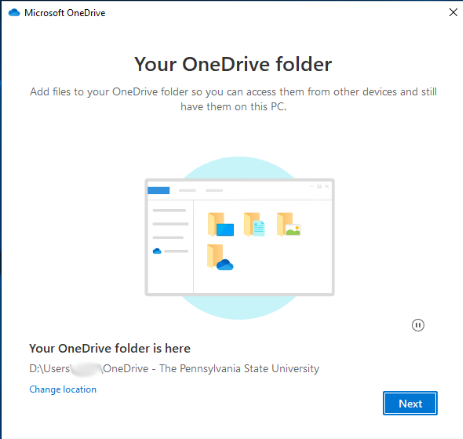
- Click through the prompts to finish the setup.
- Note that the OneDrive folder is mounted in your user folder as "OneDrive - The Pennsylvania State University".
Image
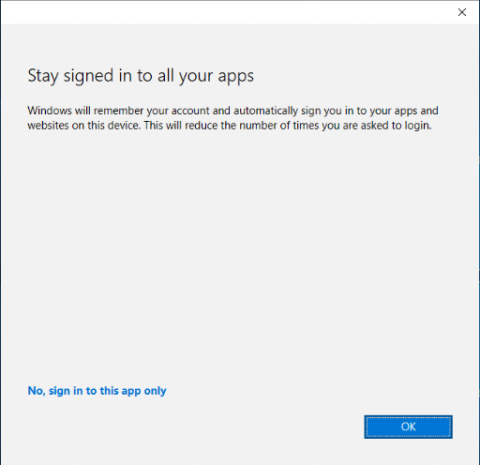
- If asked about staying signed in to other apps, either option is okay.
Image
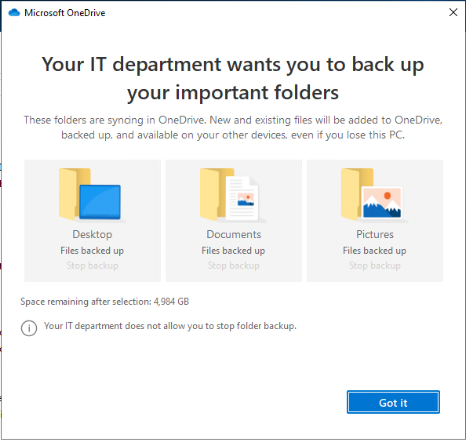
- Your Desktop, Documents, and Pictures folders will automatically backup and sync to OneDrive.
Image
- Files will be downloaded and available offline only after you view them on that device. Right-click on a file and select "Always keep on this device" to always have it available offline.
Image
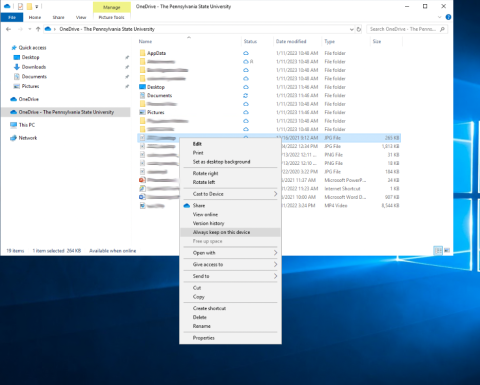
- Note that the OneDrive folder is mounted in your user folder as "OneDrive - The Pennsylvania State University".
Sync Files to OneDrive
- Make sure you are signed in to OneDrive. (It will sign you out automatically about once a month.)
- Save the file to "OneDrive - The Pennsylvania State University" or to an automatically backed up location (Desktop, Documents, or Pictures).
- Sign in to OneDrive on the other computer or remote desktop server, and open the file.