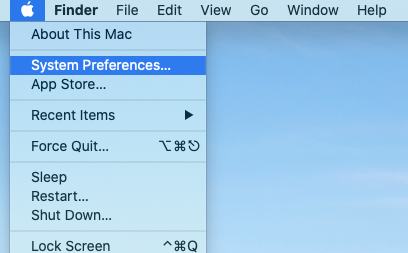
Click on the Apple logo in the top left corner of your screen.
Click on "System Preferences...".
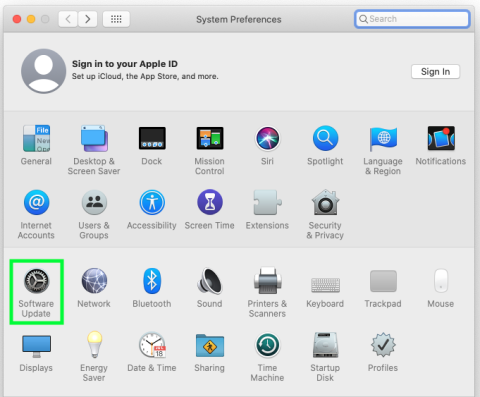
Click on "Software Update".
Check for and install updates.
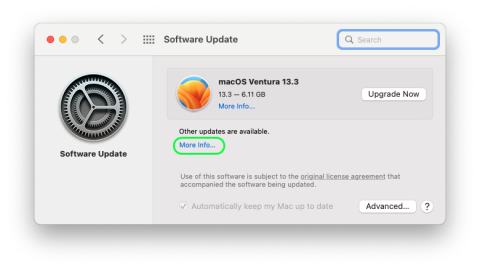
- If you see a button that says "Upgrade Now", look for the text "Another update is available" or "Other updates are available". Then click on "More info" to see and install the other update(s).
-
You can safely ignore an upgrade. It will prompt for admin credentials if you attempt to install it. SSRI IT will take care of installing this upgrade as needed.
-
If you received an email that you are missing an update but your computer doesn't show one available, please do a full shutdown of your computer (not just a restart), wait a minute, power it on, and check again. If it still doesn't show, submit a ticket.
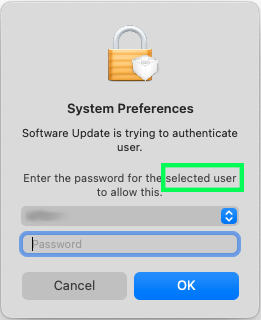
- If you see a prompt for a password, enter your normal mac login password.
Restart your computer to finish installing the update(s). Note: the installation could take an hour or more.
Keep your mac connected to the internet and plugged into power until the update finishes.
Repeat the above steps until there are no more updates available.